
In this article, we will review the Time Tracking setting page.
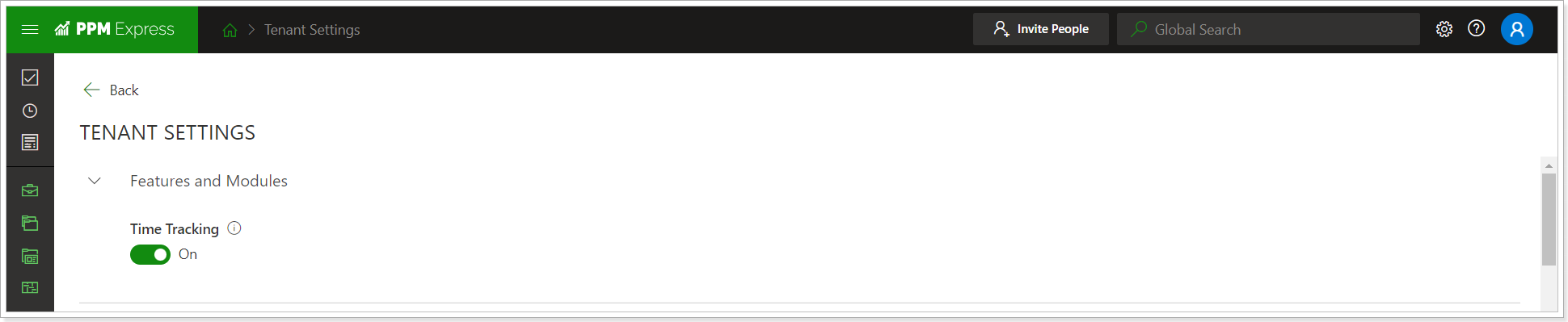
To enable or disable the Time Tracking feature in PPM Express, navigate to Settings, then Tenant Settings. Use the toggle to set the setting On or Off.
Time Reporting Settings
The first section defines time reporting settings for your PPM Express tenant.
Time Reporting Periods allow administrators to define specific date ranges during which users can report their time. These periods help control when time can be entered, edited, and locked.
If no reporting period is created, time reporting will not be available. Users will not be able to log or submit time until at least one reporting period is configured. For more details, please refer to the Time Reporting Periods article.

The 'Enable Assignment-Based Smart Suggestions' option is 'ON' by default. If enabled, all tasks assigned to users will appear on each user's timesheet automatically. Users can start reporting the time spent on these tasks immediately.
If enabled on the tenant level, users can enable/disable this 'Smart suggestions' setting on the My Time page. If disabled for the tenant, the smart suggestions will not appear on the timesheet and cannot be enabled by users on the My Time page.
The 'Enable Resource Plan Smart Suggestions' option is 'OFF' by default. This setting works only if the Project level is chosen on the Tenant Settings page for Resource Planning Level.
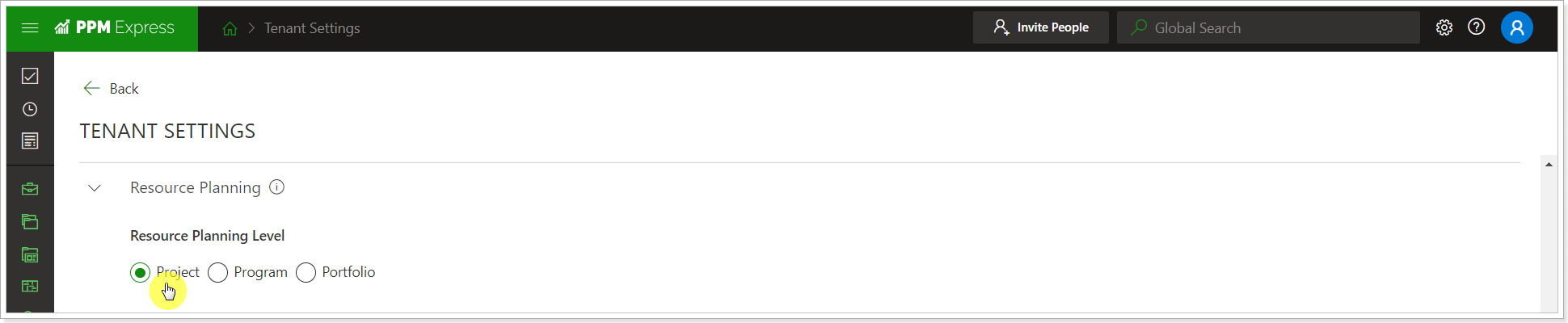
If both the 'Enable Resource Plan Smart Suggestions' setting in Time Tracking Settings and the 'Smart Suggestions' option on the My Time page are enabled, all Projects where a Resource has Planned hours and where the resource is added to the Resource Plan in the Committed mode will be added to the Timesheet. Also, the selected time period on the Resource Plan should overlap the time reporting period for the smart suggestion to appear on the My Time page.

A timeline entry called 'Project Work' will be created for these Projects on the My Time page, marked with a custom time entry icon.

The 'Time Entry Minimum Duration' defines the minimum duration for a time entry for all users in your PPM Express tenant. The value will be automatically rounded up if a user enters a time less than this specified minimum. By default, the value is set to 15 minutes.
The 'Time Reporting Increment' specifies the unit that all time entries must be in multiples of. This setting ensures consistency and simplifies the aggregation and reporting of time data. By default, the value is set to 5 minutes.
The concept is the following: e.g., the ‘Time Entry Minimum Duration’ setting is 15 minutes, and the ‘Time Reporting Increment’ setting is 10 minutes. So, when a user reports time, the system checks if the reported time is less than 15 minutes. If it is, the final record is rounded up to 15 minutes. If the reported time is more than 15 minutes, we round it up to the next nearest max value divisible by the selected increment in the ‘Time Reporting Increment’ setting. For example, a user reported 25 minutes. It’s greater than 15 minutes and not divisible by 10. In this case, the record is rounded up to 30 minutes.
The 'Import from Microsoft 365' option allows adding a Microsoft 365 connection and importing Microsoft 365 activities as PPM Express Time entries for each user on the My Time page.
The 'Import External Time' setting allows users to import their Time Entries from the Entries added to PPM Express via API. This setting is 'OFF' by default.
For more details, please refer to the 'How to import External Activities as PPM Express Time Entries' article.
Timesheet Approvals
Timesheet Approvals are available for tenants on the Enterprise Ultra plan.
The Timesheet Approvals feature enables organizations to review and approve reported time before it becomes final. This functionality helps ensure accurate time tracking and provides additional control over project and administrative time reporting.
With the Timesheet Approvals on, users submit their timesheets for review, and designated managers can approve or reject the reported hours. Approval requests are sent to the appropriate managers depending on the type of reported time:
- Project/Non-Project time is sent to the Project Manager assigned to the project.
- Administrative time is sent to the Direct Manager assigned to the resource.
- Administrators can see and process all requests.
The Approval Center page is used to review, accept, or reject timesheet approval requests.
By default, Timesheet Approvals are turned off for the tenant. To start using this functionality, a PPM Express Administrator must enable it in Time Tracking Settings -> Timesheet Approvals section.

If the setting is on, the Approval Required setting will be ON by default for newly created Time Reporting Periods. For existing Time Reporting Periods, Timesheet Approvals can be enabled in bulk on the Time Reporting Periods page.
For more details, please refer to the Timesheet Approvals article.
Reported Time Synchronization
The 'Record Reported Time to Completed Work' defines whether user-reported time should be added to the PPM Express tasks' Completed Work.

The setting is OFF by Default. It is global for all Projects in the tenant and defines the Default mode. At the same time, this option can be turned on/off individually at the Project level in the Project Settings. However, if the global setting is OFF, it cannot be turned ON at the Project level.
If the setting is OFF and users report time, this time is not added to the Completed Work. If then the setting is turned ON, it will recalculate Completed Work for all tasks with reported time, if any. The same logic is applied at the Project level. Suppose the setting is ON for the tenant but is OFF for any specific Project. If then the setting is turned ON for the Project, the Completed Work will be recalculated for this Project.
The 'Record Reported Time to Resource Plan Actuals' defines if Resource Plan Actuals (in the Resource Plan Project section) are recalculated using the time reported by Users on the My Time page. If enabled, it will affect all Projects where the time was reported and overwrite all values in Actuals.
If a user reports time for a date where they don't have Planned hours in the Resource Plan, this time will still be recorded in the Resource Plan Actuals.
If the timesheet data is deleted, the corresponding Actuals entries will also be removed from the Resource Plan.
There is an option to bulk synchronize timesheet data into the Resource Plan if needed (e.g., in case of data issues or corruption). This option will scan all related Project timesheets and load all Actuals into the Resource Plan.

The synchronization option 'Sync Actuals from Reported Time' is also located in the Resource Plan section of the Project dashboard.
The PPM Express Administrators can enable the 'Synchronize only approved time' setting.
It allows synchronization only of the approved reported time to the Task Completed Work and Resource Plan Actuals across all projects in your tenant. This setting does not affect periods where the approval is not required. Time from such periods will continue to be synchronized (if synchronization is enabled), regardless of this setting.

Billable and Cost Type Synchronization
The 'Users can override Cost Type value' defines if users in your tenant can manually change the Cost Type values (CAPEX or OPEX) in Timesheet entries.
By default, the Cost Type field values are synchronized from the corresponding Task level field to the Timesheet entry field.

The 'Users can override Billable Type value' defines if users in your tenant can manually change the Billable Type values (Yes or No) in Timesheet entries.
By default, the Billable field values are synchronized from the corresponding Task level field to the Timesheet entry field.
The 'Use Cost Type value from' defines if the Cost Type field values will be synchronized from the corresponding Task level field or Project level field to the Timesheet entry.

The 'Use Billable Type value from' defines if the Billable field values will be synchronized from the corresponding Task level field or Project level field to the Timesheet entry.

For project plans, only the Billable Type field is available, and it can be edited by users.
Time Reporting Controls
The Time Reporting Controls section includes two settings that are enabled ('ON') by default, offering flexibility and functionality for managing time reporting.
Report Time on Unassigned Tasks
When this setting is 'ON', users can report time on tasks even if they are not assigned to them. At a minimum, 'Read' permission is required for the project to report time on such tasks. Enabling this setting allows users to track work on tasks outside their direct responsibilities, fostering collaboration in shared project environments.
If this setting is turned 'OFF':
- Unassigned tasks will no longer be visible on the My Time page.
- Users will not be able to report time on these tasks.
If the setting was previously 'ON' and users have reported time on unassigned tasks, turning the setting 'OFF' will:
- Preserve the tasks where time was already reported, allowing them to be edited.
- Restrict users from reporting additional time or cloning these tasks moving forward.
Enable Custom Time Entries
When this setting is 'ON', users can report time on non-scheduled activities within projects (without a task being explicitly created). These entries will be added to the Timesheet as new line items.
When this setting is 'OFF':
- Users can still import time entries from M365.
- Resource Plan (Project Work) suggestions will remain available.
If the setting was previously 'ON' and is switched 'OFF':
- Existing custom time entries will be preserved.
- Users will no longer be able to add new custom time entries or clone existing ones.

Administrative Categories
In the ‘Administrative Categories’ section, the PPM Express Administrators or users with Manage Time Tracking permission can define the Categories on which all tenant users will report time.
By default, the following Categories are available in the list:
- Sick Leave
- Vacation
- OOF
- Business Travel
- PTO (paid time off)
By default, all users in the tenant can report time on Administrative Categories.
Administrators/users with Manage Time Tracking permission can create new categories and edit/deactivate/delete existing ones. However, if any time was reported on the Category, it cannot be deleted.
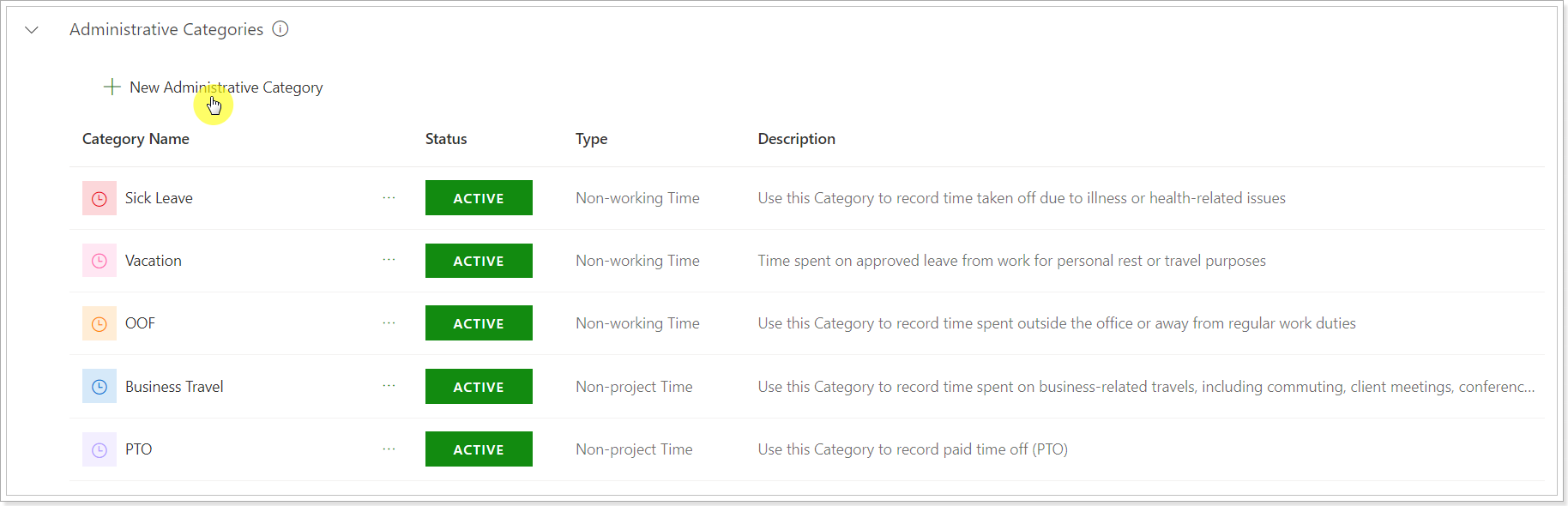
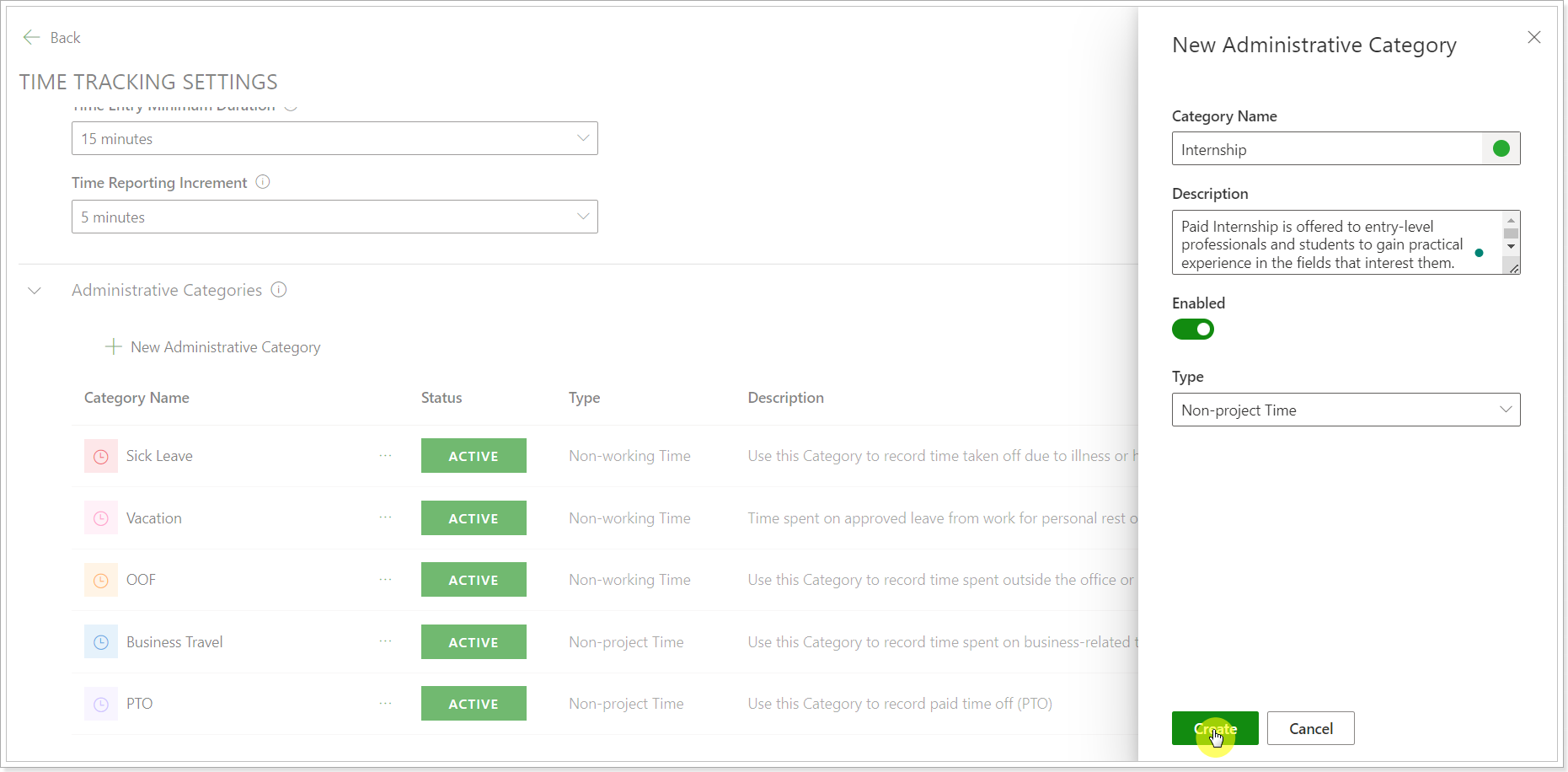
Click the 'New Administrative Category' button to create a new category.
Type in the category name, select its color, and add a description if needed. Select the category type: Non-Project Time or Non-working Time.
Click Create. The category becomes available for all users in your tenant.
Approval Reminders
On the Time Tracking Settings page, administrators can configure the approval reminders and their frequency.
- How often approvers receive reminders
- Overdue approval reminder frequency
- When approval requests become overdue
- How often users are reminded to submit timesheets
- When submission reminders start
- When timesheets are considered overdue
- Timesheet approval reminder notification schedule (browser timezone is used)

Once configured by the PPM Express Administrator, the system automatically sends emails in the following situations:
To Approvers:
- When a new approval request is submitted
- When requests are pending
- When requests become overdue
To Users:
- Reminder to submit timesheets
- Reminder about overdue timesheets
- Notification when time is approved
- Notification when time is rejected (including comments)
Users will only receive these emails if “Receive notifications” is enabled in their personal settings.